All work

Naadhagama · 2025

Naadhagama: a festival pass you build yourself

Naadhagama grew from a concert into a multi-day festival of music, with shows, campfires, drama and morning activities spread over several days. A pass is no longer one seat at one show: it is a set of entitlements the buyer has to turn into a plan. This is the platform that lets them do it.

Role
UX designer
Platform
Responsive web, desktop and mobile
Scope
Sign-up, passes, pass builder, checkout, profile
Follows
The National Museum ticketing system
Naadha Gama online ticketing portal shown on a laptop and a phone

01The problem

A festival pass is a promise of several things. Someone still has to decide which ones, on which day.

The earlier Naadhagama system sold a ticket to a show: pick a date, pick a quantity, pay. The festival does not work that way. A top-tier pass includes one Naadhagama show, sessions of Notes Upon a Mountain, entry to Gregory's Campfire across several nights, drama, and unlimited entry to the festival park.

Each of those has its own dates and its own limit. If the platform only sold the pass and left the choosing for later, the organisers could not plan capacity and the buyer would not know what they had bought.

02The platform

Three passes, three sets of rules

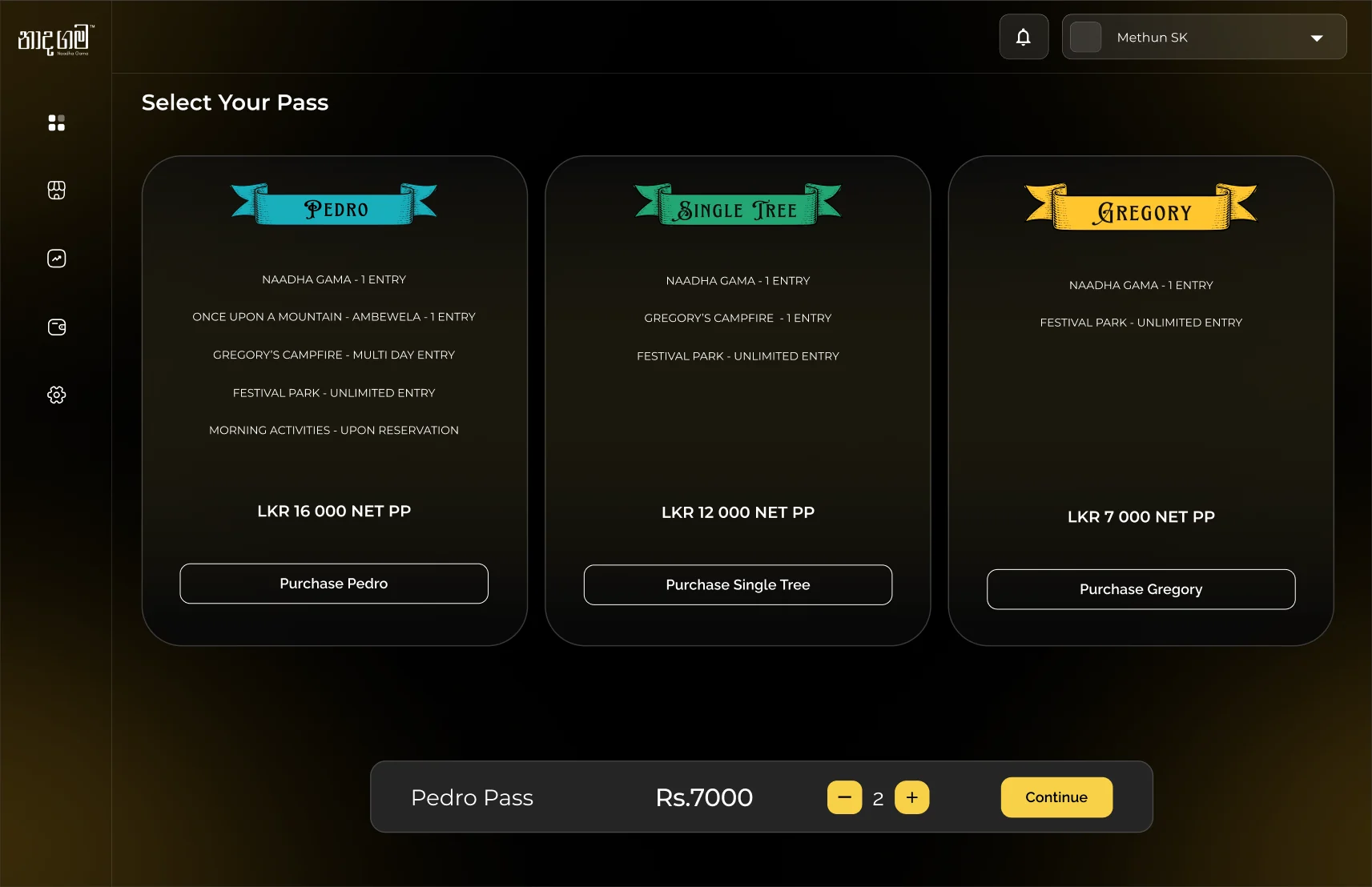
  • Pedro

    LKR 16,000

    One Naadhagama show, Once Upon a Mountain at Ambewela, multi-day entry to Gregory's Campfire, unlimited festival park, and morning activities on reservation.

  • Single Tree

    LKR 12,000

    One Naadhagama show, one entry to Gregory's Campfire, and unlimited entry to the festival park.

  • Gregory

    LKR 7,000

    One Naadhagama show and unlimited entry to the festival park.

  • The pass a buyer picks decides how many steps the builder has and how many choices each step allows.
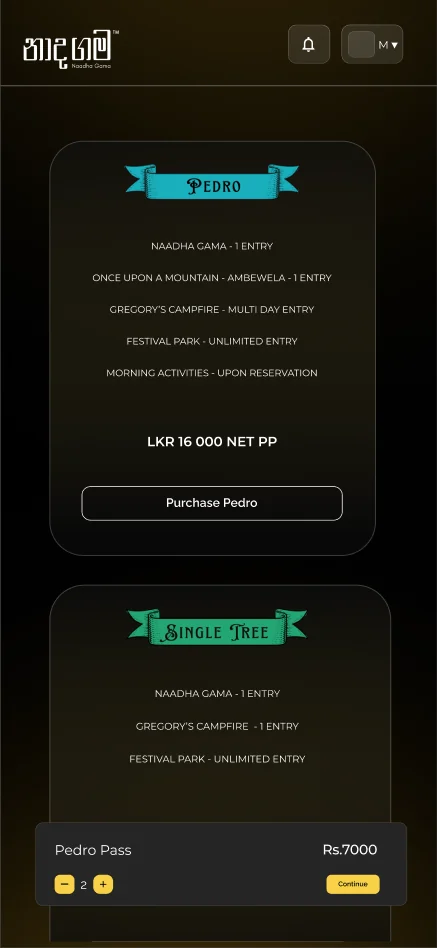
  • Several passes can be bought at once; a bar at the foot of the screen holds the pass, the quantity and the running price.

03User journey

Building a pass, one rule at a time

Each step covers one part of the festival and says, in a sentence, what the chosen pass allows there.

  1. 01

    Pick a pass

    Three passes side by side, each listing what it includes and its price.

    The ruleOne pass type, any quantity

  2. 02

    Naadhagama

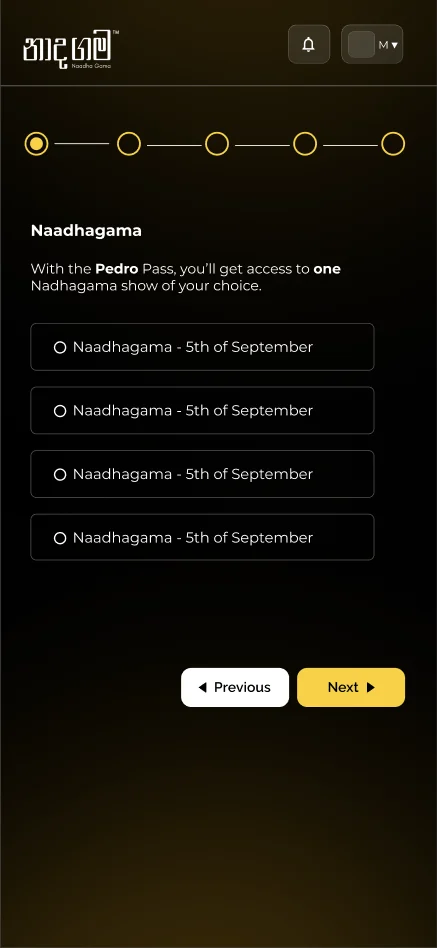
    The main show runs on several dates. The buyer picks the one they will attend.

    The ruleChoose one

  3. 03

    Notes Upon a Mountain

    Sessions on different days, chosen with checkboxes because more than one is allowed.

    The ruleChoose two

  4. 04

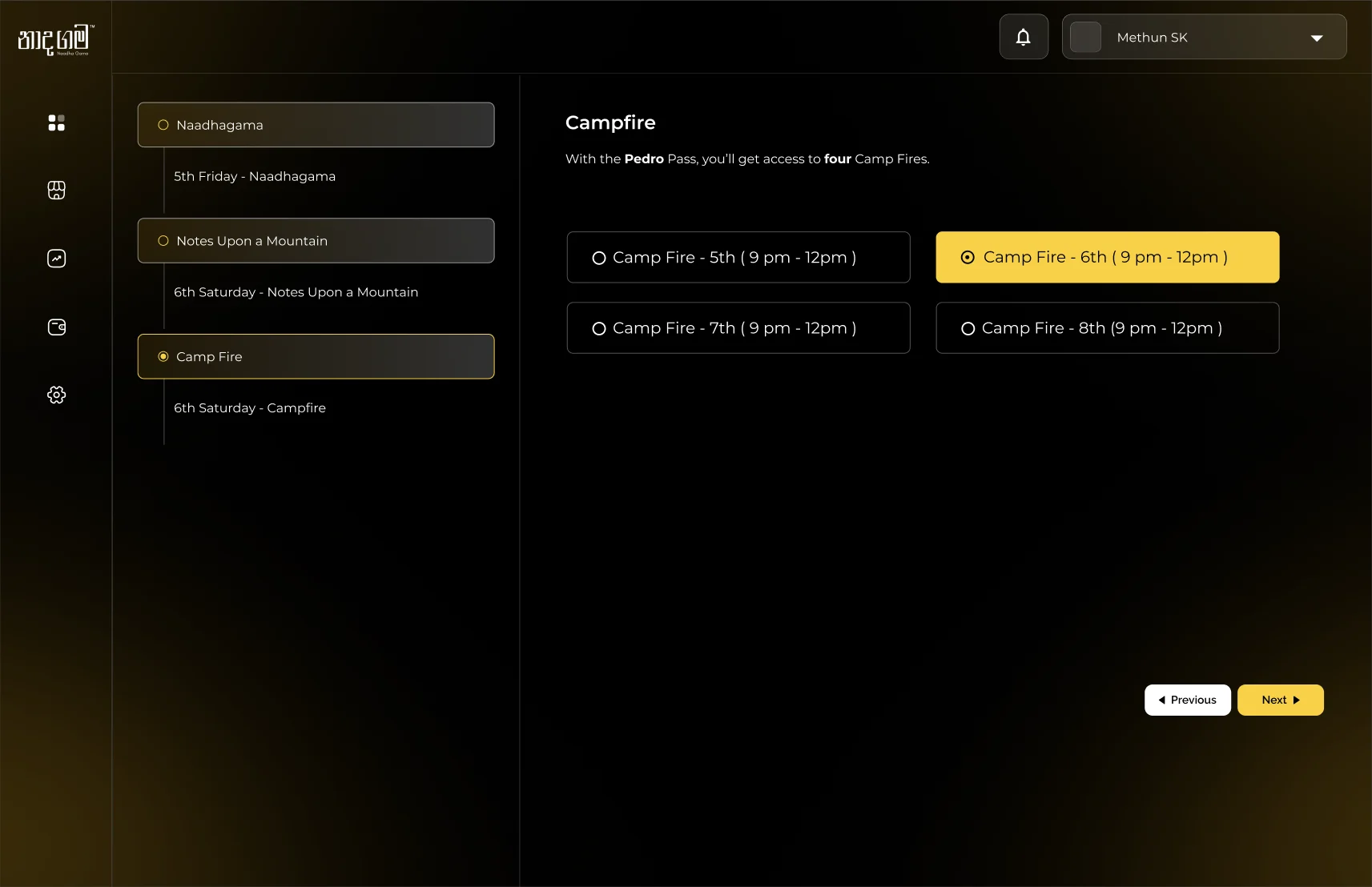
    Campfire and drama

    Evening campfires and afternoon dramas, each listed with its date and time.

    The ruleUp to the pass's limit

  5. 05

    Add-ons

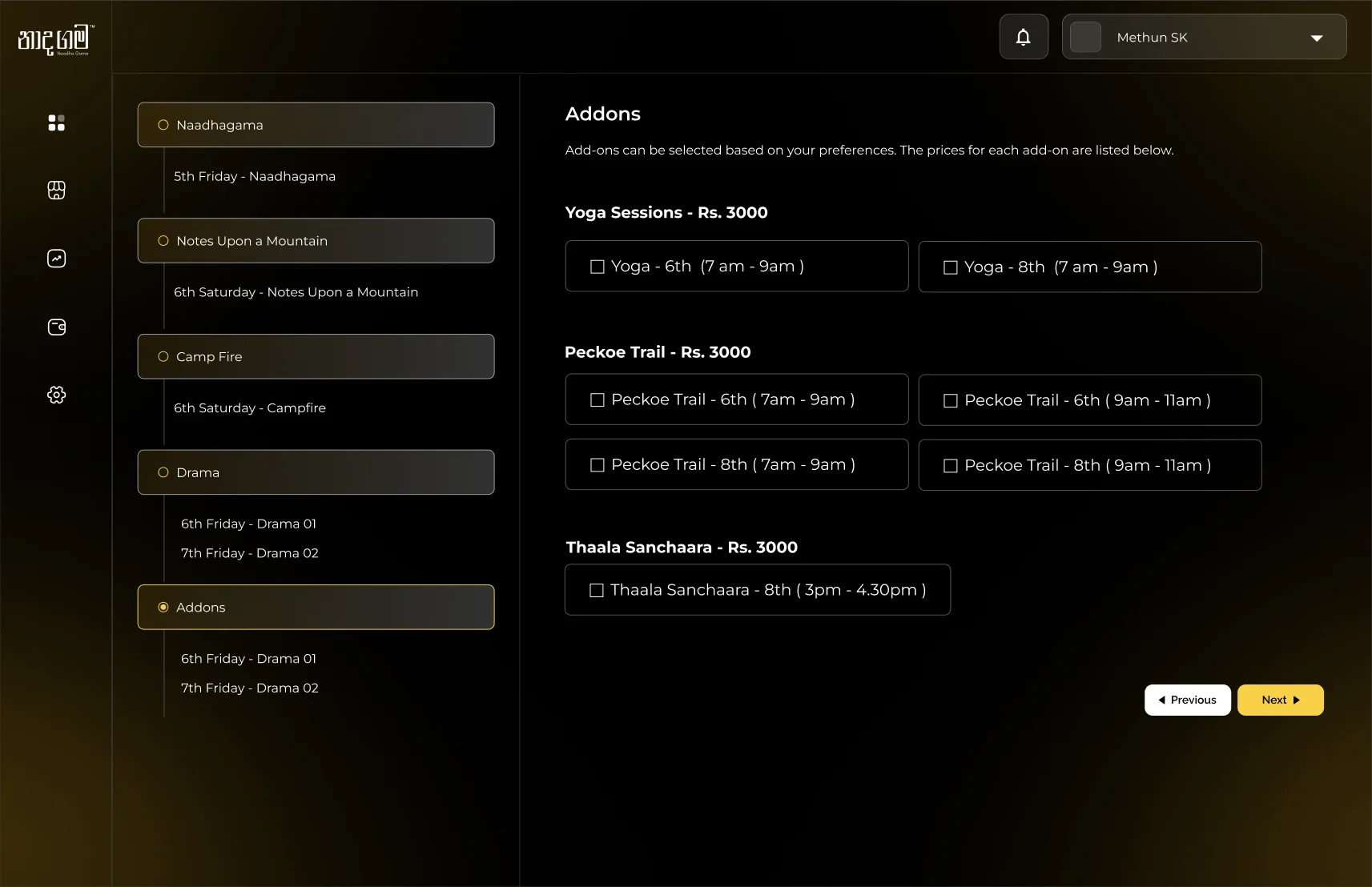
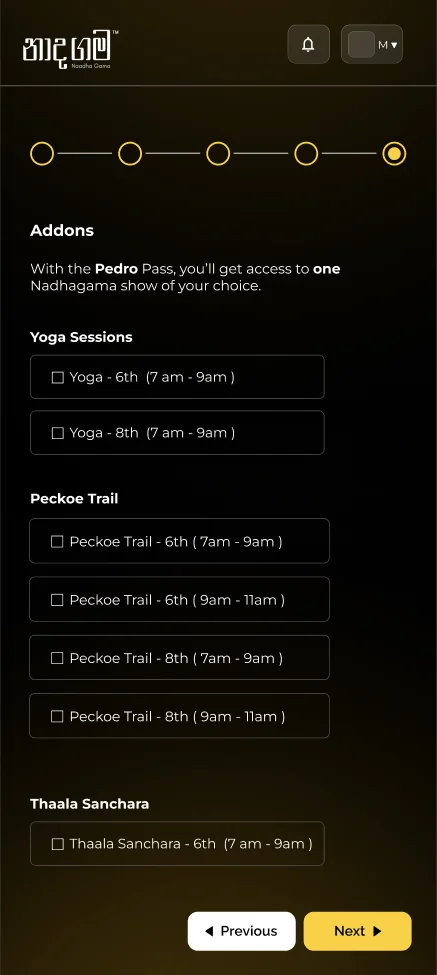
    Yoga, the Pekoe Trail and Thaala Sanchaara are optional extras with their own prices.

    The rulePriced separately

  6. 06

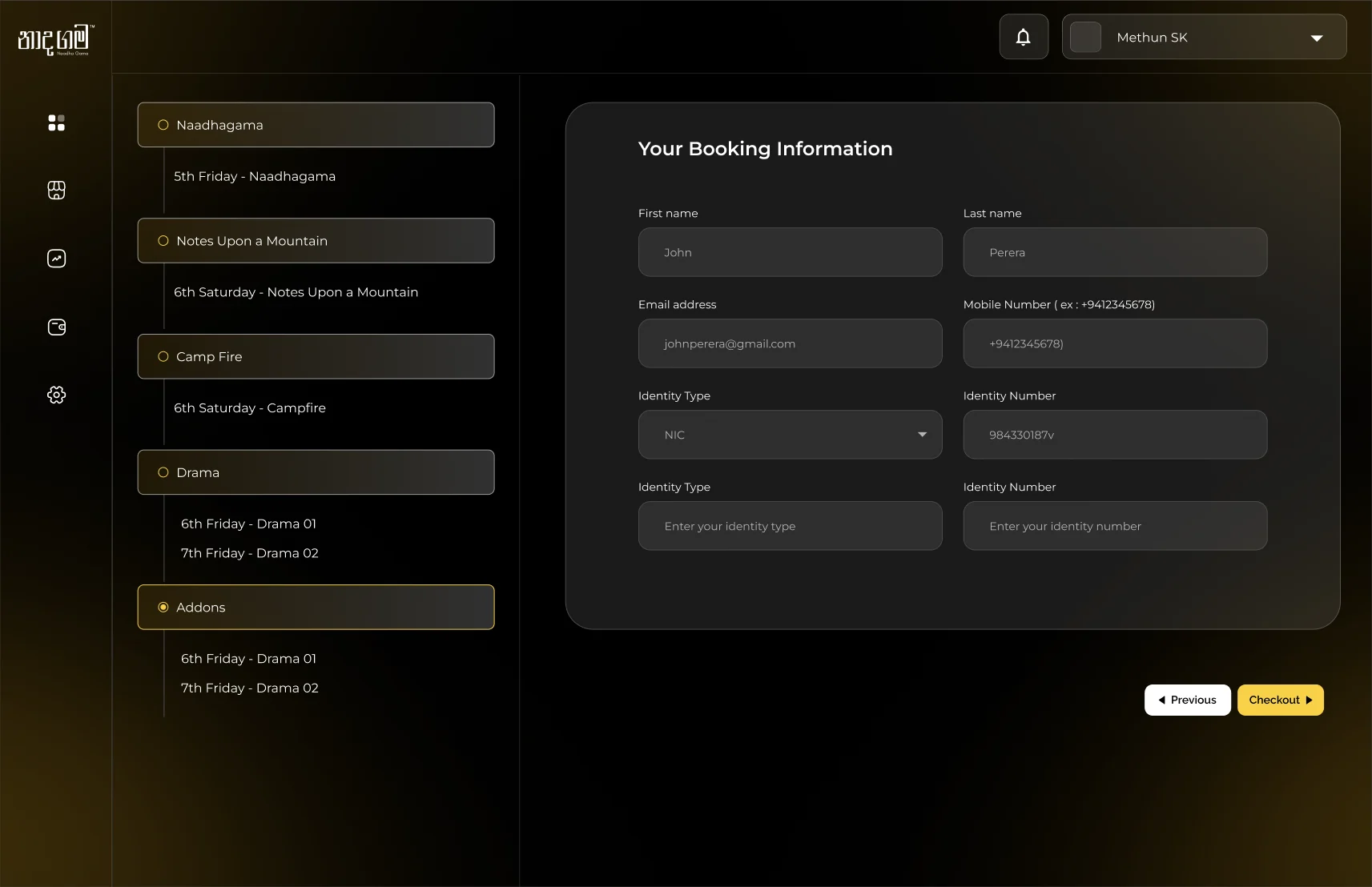
    Details and checkout

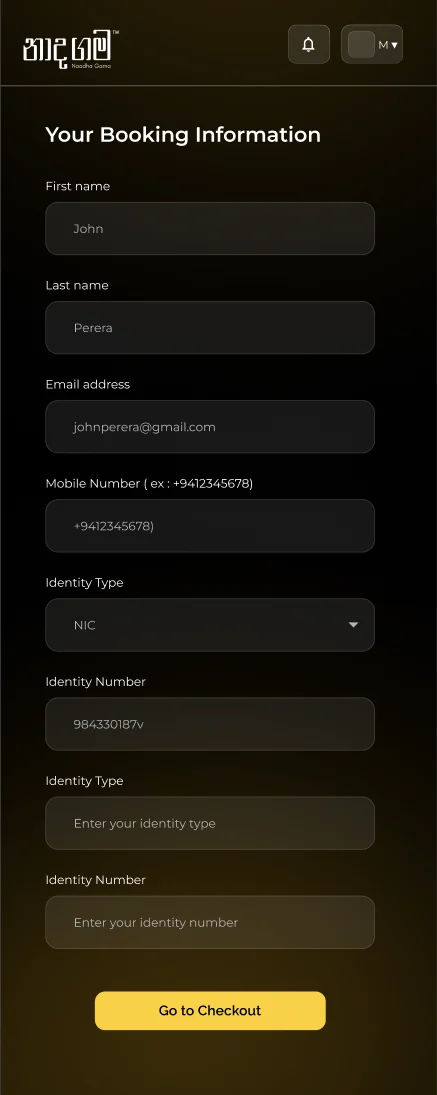
    Name, contact and identity details for the pass holder, then payment.

    The ruleOnce per booking

04Design decisions

How the builder stays understandable

A flow with this many choices can easily feel like a form. Four decisions keep it feeling like planning a weekend.

01

Say the rule before asking the question

Buyers cannot be expected to remember what their pass includes five steps in. Every step opens with one sentence that restates it for that part of the festival.

How it works

  • One sentence per step"With the Pedro Pass, you'll get access to two Notes Upon a Mountain sessions." The number is in bold.
  • The control matches the ruleWhere one option is allowed the choices are radio buttons; where several are allowed they are checkboxes.
  • Dates and times in the optionEach choice carries its date and time, so nothing has to be looked up elsewhere.
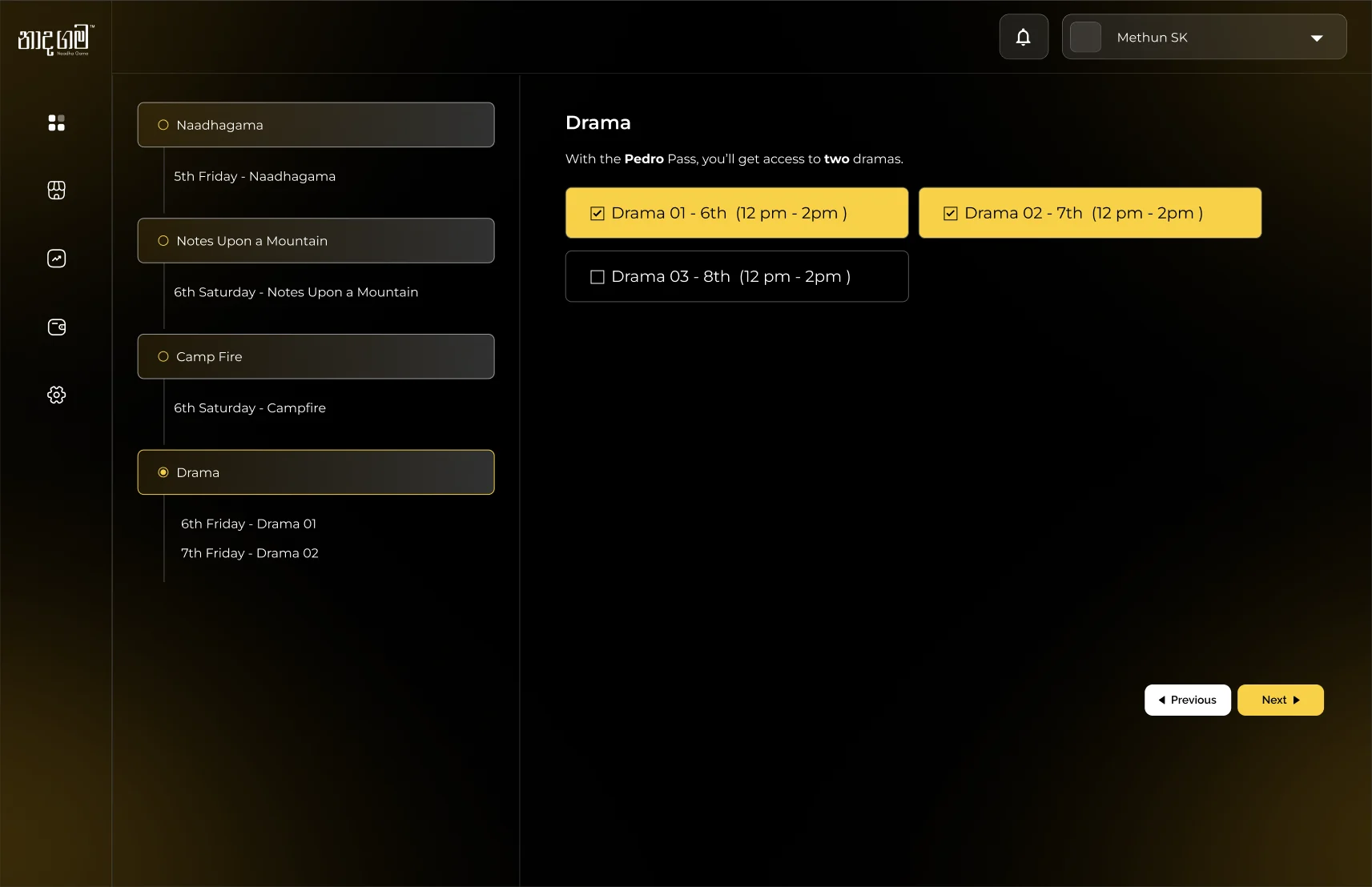
The Drama step: a sentence saying the Pedro Pass includes two dramas, with two of three options selected
02

The plan builds beside you

By the fourth step a buyer has made several choices and can no longer see them. Going back to check is how people abandon a long flow.

How it works

  • A rail of what has been chosenOn desktop, the left side lists each part of the festival with the selections made under it.
  • It doubles as navigationThe current step is highlighted in the rail, so it shows both progress and the plan so far.
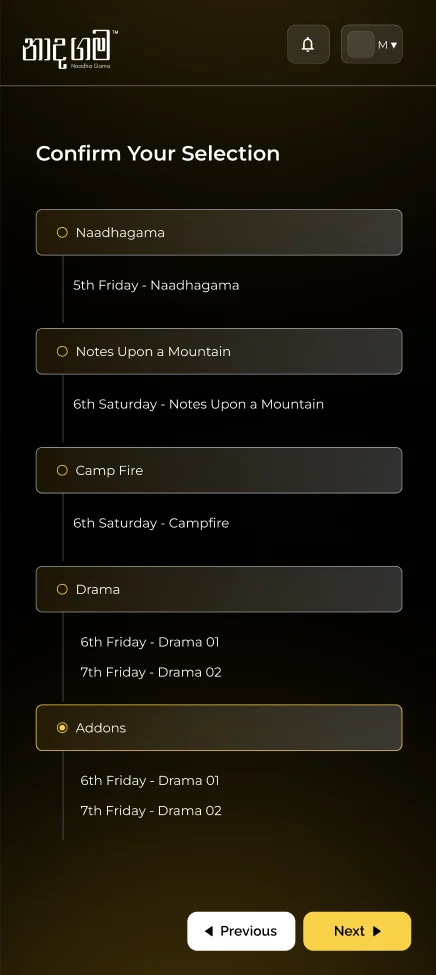
  • On a phone, dots and a reviewThe rail becomes five progress dots, and a Confirm Your Selection screen shows the whole plan before details are asked for.
The Add-ons step with the left rail listing the Naadhagama, Notes Upon a Mountain, Campfire and Drama selections
03

Watch before you choose

Notes Upon a Mountain and Thaala Sanchaara mean nothing to a first-time visitor. Choosing between things you cannot picture is guesswork.

How it works

  • A short film before the builderAfter picking a pass, the buyer is offered a video of what the festival is, before any choices are asked of them.
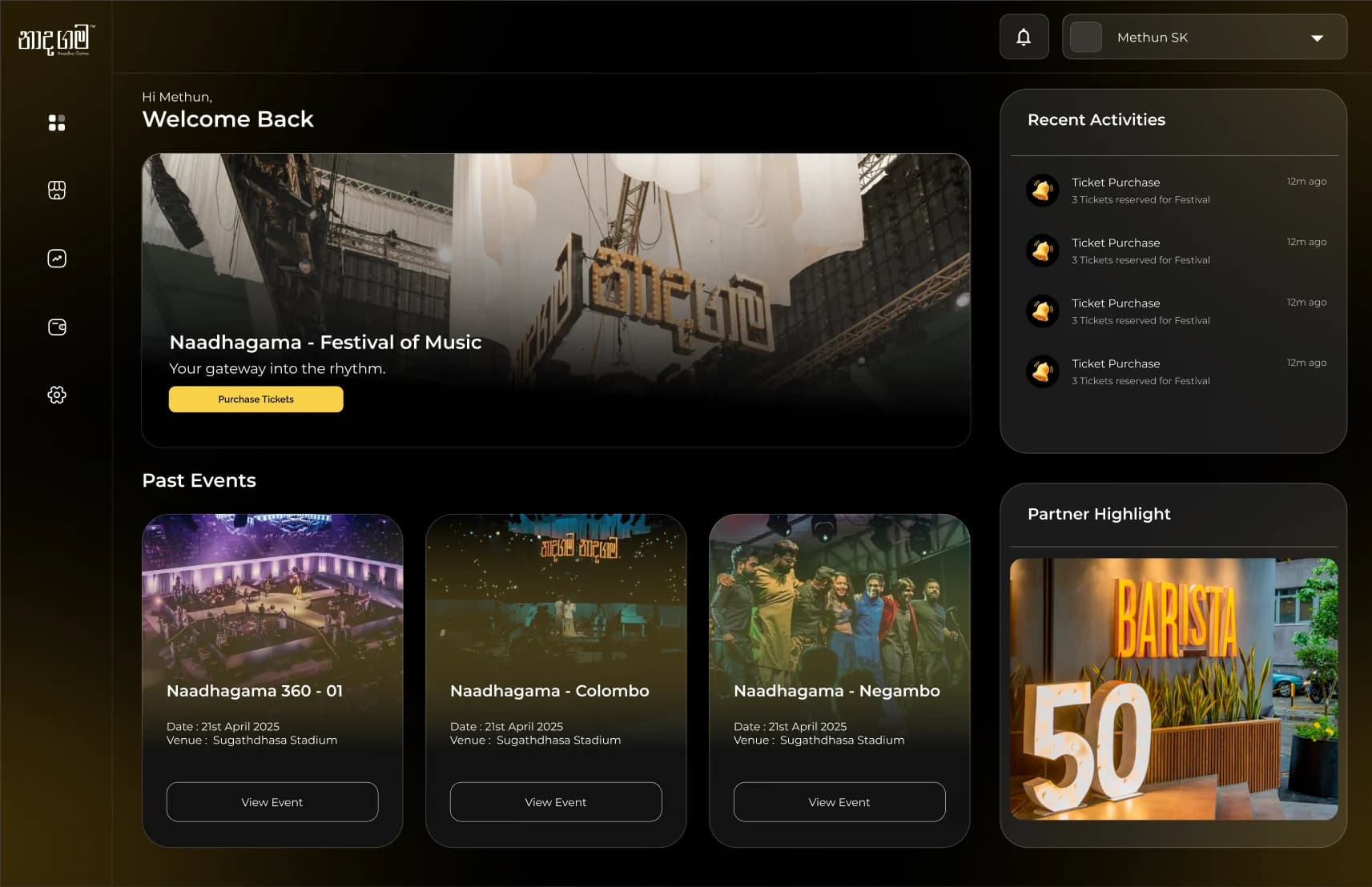
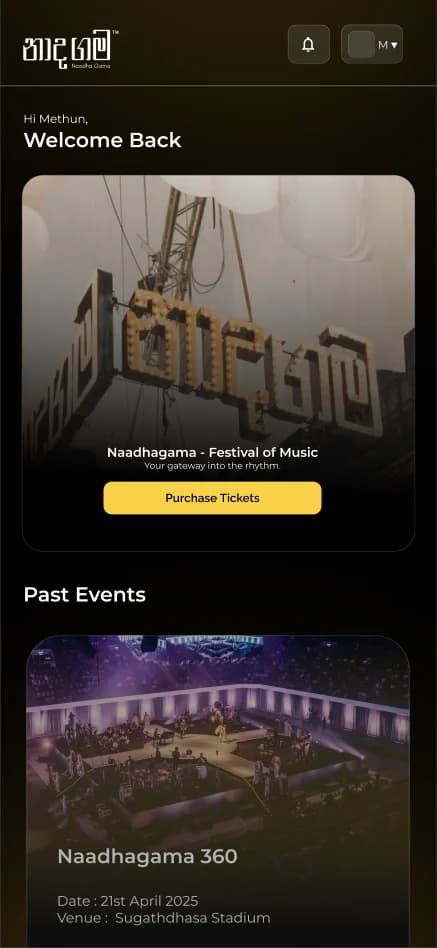
  • Past events on the home screenThe dashboard shows earlier Naadhagama events with photographs, as evidence of what a ticket buys.
04

After payment, the pass becomes the home

Once someone has paid, the question changes from what to buy to where to be and when.

How it works

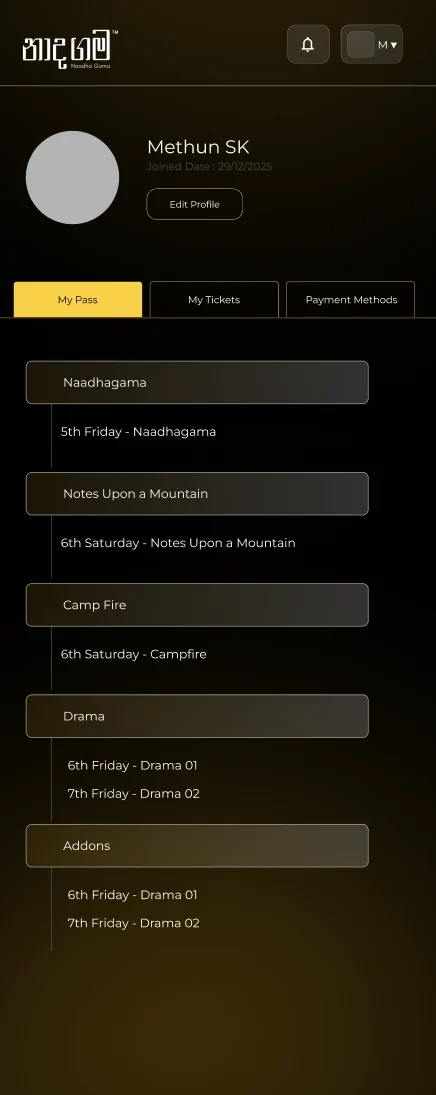
  • My PassThe profile opens on the pass, showing the same plan the buyer built, session by session.
  • My Tickets and payment methodsKept as separate tabs beside it, out of the way of the plan.
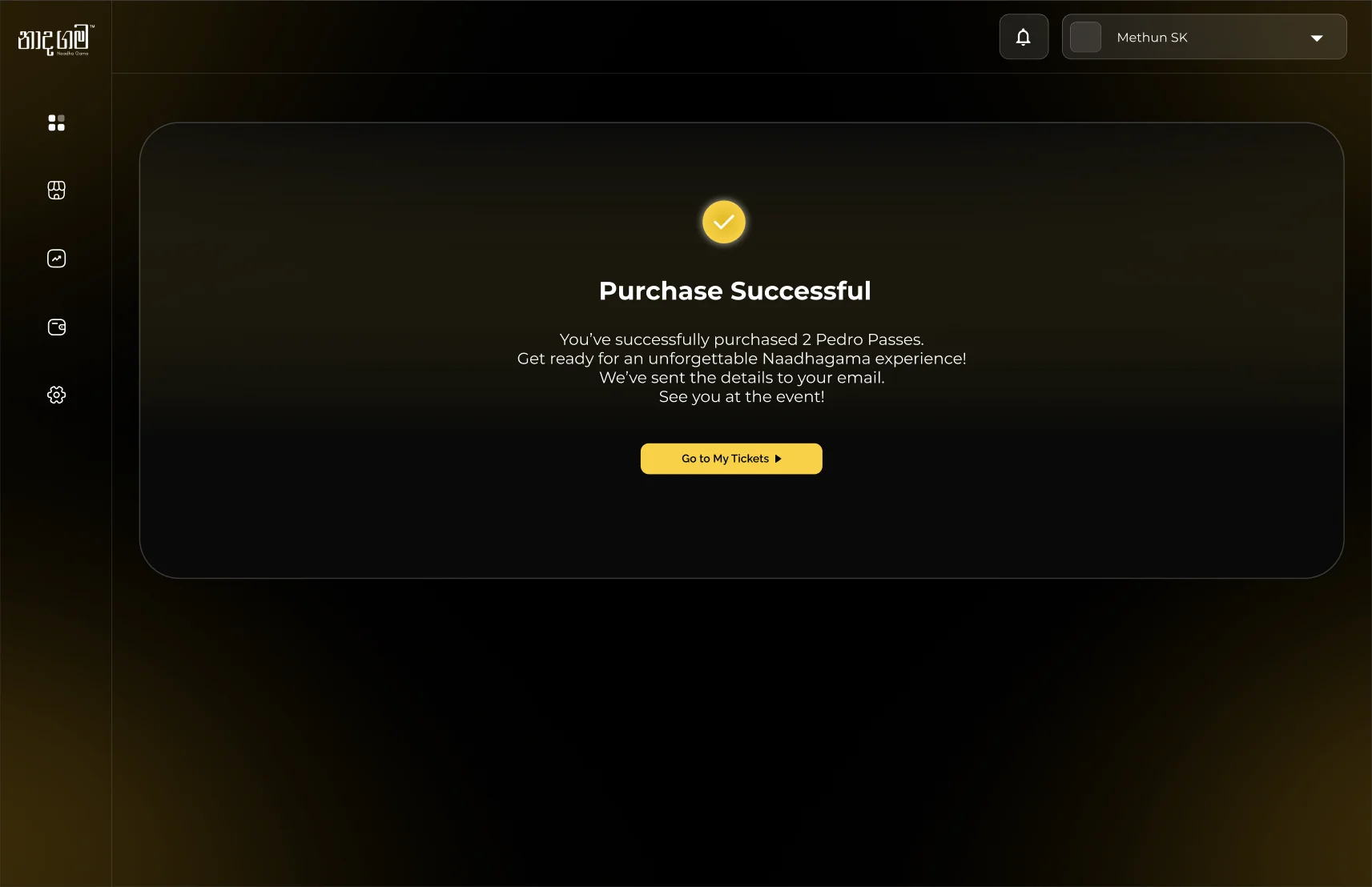
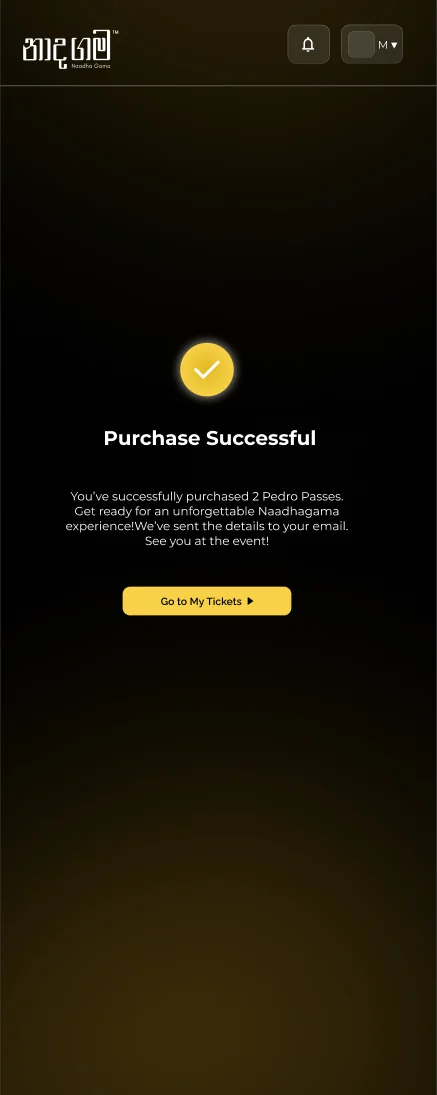
  • A clear end to the purchaseThe success screen names what was bought and leads straight to the tickets.
Purchase Successful: two Pedro Passes bought, with a Go to My Tickets button

05The work

On a desktop

The dashboard: the festival banner with Purchase Tickets, past events, recent activity and a partner highlight
Dashboard
Select Your Pass: Pedro, Single Tree and Gregory, with a bar showing the Pedro Pass, quantity and Continue
Choosing a pass and a quantity
The Campfire step with one of four evenings selected
A step in the pass builder
Your Booking Information: name, email, mobile and identity fields with a Checkout button
Booking information

06The work

On a phone

The same flow, with the rail replaced by progress dots and a review step.

  1. The dashboard on a phone

    01Dashboard

  2. Passes on a phone with the quantity bar

    02Pass and quantity

  3. A builder step on a phone with five progress dots

    03A builder step

  4. Add-ons on a phone

    04Add-ons

  5. Confirm Your Selection on a phone

    05Review

  6. Booking information on a phone

    06Booking details

  7. Purchase Successful on a phone

    07Success

  8. The profile's My Pass tab on a phone

    08My Pass