
All work

Concept project · 2025

Offline-first UX for field service

A mobile app for technicians who do their work where the signal is worst. The design question was what the app should do when the connection drops, and the answer shaped syncing, calling, maps and media.

Role
UX / UI design, end to end
Platform
Mobile app (iOS)
Focus
Technician app
Deliverables
Research, IA, design system, prototype
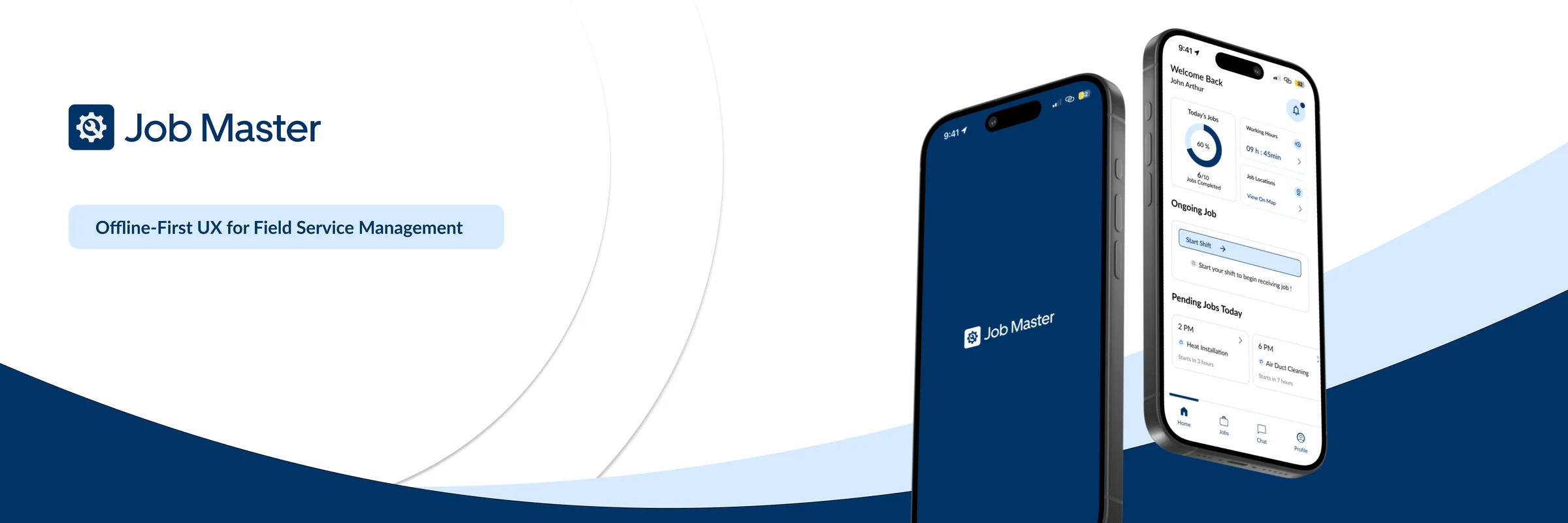
Job Master, offline-first UX for field service management: the splash screen and the technician's home screen on two phones

01The problem

Technicians often work in remote places with poor or no internet. That is exactly when they most need their job information.

In those situations, reaching crucial job details, staying in touch with the team or the client, and updating job progress all become difficult. Without a reliable offline path, technicians face delays in completing tasks, a higher chance of mistakes from outdated information, and trouble reaching the people they need.

This is not only an individual problem. It lowers the efficiency of the whole service operation and leads to unhappy customers: service organisations struggle to keep their promises when their technicians are held back by connectivity.

02The platform

Three apps, one focus

  • Technician app

    This study

    For field technicians to manage jobs and stay productive.

  • Client app

    For clients to talk to technicians and track the status of their service requests.

  • Admin app

    For administrators to monitor, assign tasks and oversee operations.

  • The three apps work together so communication and task management run smoothly for everyone involved.
  • The technician app is built for companies: technician accounts are created by the company itself.

03Who it is for

User personas

John Arthur

A/C repair technician · 32

Single; enjoys travelling and outdoor activities. Lives in the suburbs; serves residential and commercial clients in nearby cities.

Goals

  • Diagnose and repair A/C units efficiently, with every service detail logged.
  • Communicate seamlessly with clients.
  • Keep all job details, repair notes and images in one place.

Pain points

  • Documenting repairs with images and notes quickly and clearly while on site is hard.
  • The map does not load when service is poor, which makes job sites hard to find.

Behaviours

  • Often uses his phone to review the schedule and confirm locations.
  • Values being able to use maps offline in remote areas.

Tom Roberts

Telecommunications technician · 45

Married, with two children aged 10 and 12. Based in a city centre but works in rural and urban locations.

Goals

  • Install and maintain telecommunications systems, including internet and phone lines.
  • Easily track client appointments and job locations.

Pain points

  • Has to rely on several systems to document work and gather client feedback.
  • Misses important notifications because communication is fragmented.

Behaviours

  • Regularly uses mobile apps to update job statuses and log completed repairs.
  • Relies on a map-based interface to move between jobs and see new assignments.

04User journey

Completing a field job

John, 32, uses the app to manage his assigned jobs, talk to clients and report job status. His work is troubleshooting and repairing A/C equipment at client sites.

  1. 01

    Receives the job

    A notification arrives in the Job Master app.

    FeelsCurious and interested

  2. 02

    Views the details

    He reviews what the job involves.

    FeelsPrepared and focused

  3. 03

    Travels to the client

    He follows directions to the client's address.

    FeelsConfident and ready

  4. 04

    Starts the job

    He taps Start Job to log the start time.

    FeelsEngaged and productive

  5. 05

    Talks to the client

    If needed, he chats with or calls the client.

    FeelsReassured and in control

  6. 06

    Completes the job

    He taps Complete Job once the repair is finished.

    FeelsSatisfied and accomplished

05Structure

Information architecture

Technician app
  • Home

    • Job completion statistics
    • Map of all current job locations
    • Clock in for the shift
    • Ongoing job
    • Pending jobs
  • Jobs

    • Ongoing job
    • Pending jobs
    • Completed jobs
    Leads to
    • Single page for a pending job
    • Single page for a completed job
  • Chat

    • Team chat
    • Back-office chat
  • Profile

    • Profile picture and name
    • Job role
    • Clock in for the shift
    • Edit profile
    • Help and support
    • Log out

06Design decisions

Designing for no signal

Four decisions about how the app behaves when the connection is weak. For each, the alternatives were weighed before one was chosen.

01

Manual sync for job completion

When a job is finished, its completion status and timestamp have to reach the server accurately, even if the technician is standing somewhere with no signal.

Options considered

  1. 1

    Automatic sync with continuous retry. The app tries to sync completion data by itself and keeps retrying while the connection is unstable.

  2. 2

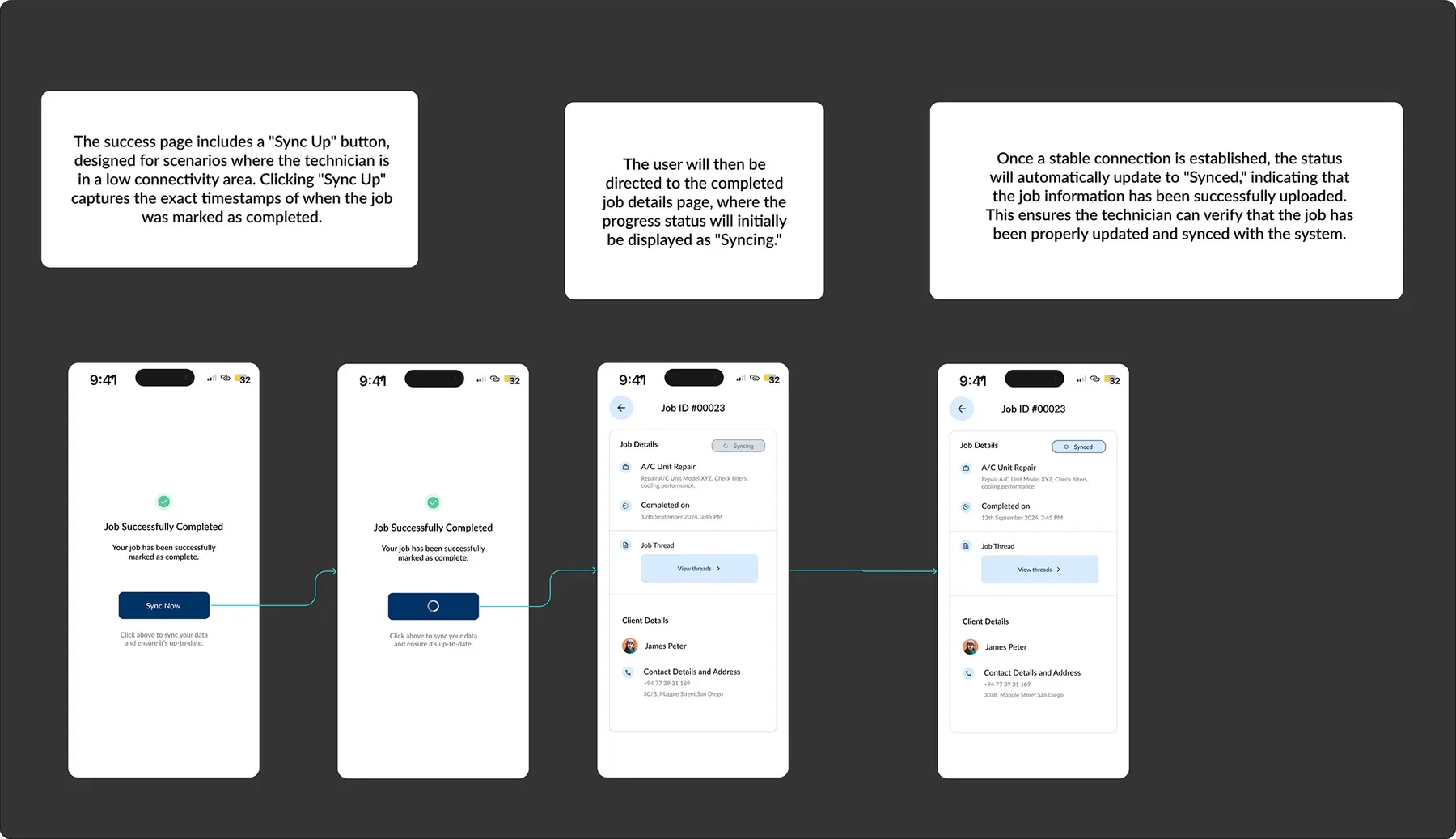
    Manual sync button with timestamp recording. The technician presses Sync Up, which records the completion timestamp. Once a stable connection is detected, the status moves from Syncing to Synced.

Why not automatic retry

  • Unreliable updatesA sync may not complete on an unstable connection, leaving job updates inconsistent or incomplete.
  • Risk of data lossRepeated retries can lose or corrupt data if the connection problems persist.
  • Resource drainContinuous retrying uses battery and device resources, worst of all in low-connectivity areas.

Decision

  • Manual sync button with timestamp recordingPressing Sync Up records the exact completion time and sets the job to Syncing. When a stable connection returns, the app updates it to Synced. The record is accurate, the risk of data loss is lower, and the device is not worn down by retries.
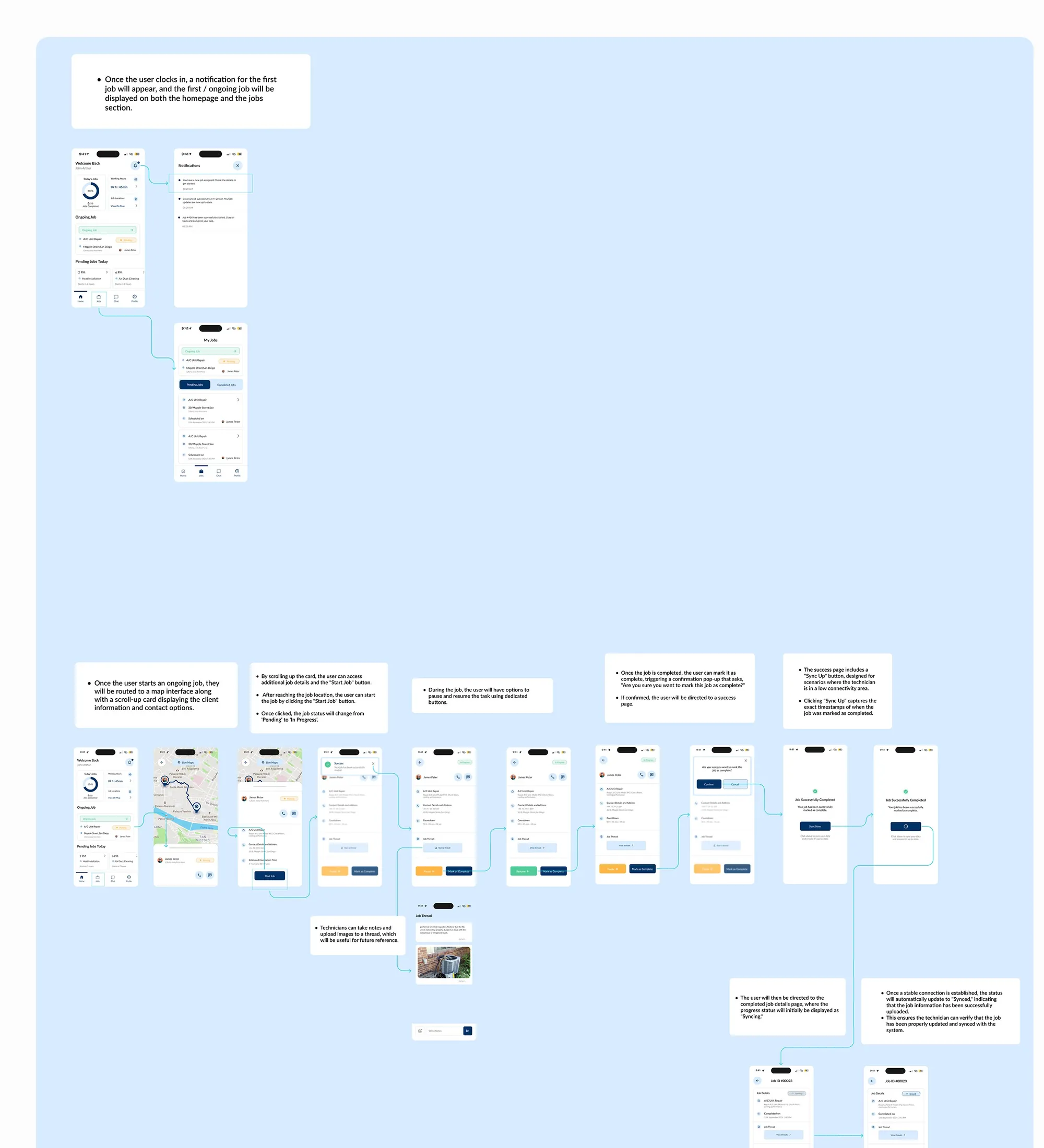
Annotated screens: the success page with a Sync Up button, the job shown as Syncing, then as Synced once the connection is stable
02

Carrier-only calls

In-app calling keeps communication inside the workflow, which is convenient, but it depends on the very connection that field work cannot count on.

Options considered

  1. 1

    In-app calls with automatic carrier fallback. The app tries an in-app call first and silently switches to the carrier signal if it fails.

  2. 2

    In-app calls with a manual switch prompt. The app tries in-app first and, if that fails, asks the technician to switch to a carrier call.

  3. 3

    Carrier-only calls. The app relies entirely on the phone's carrier signal, with no in-app calling.

Why not in-app calling

  • Lost confidenceFrequent failed in-app calls erode trust in the app for essential communication.
  • Stress and lost timeHaving to switch to carrier calls again and again adds stress and slows the work.
  • Communication breakdownA glitch or delay while switching modes could leave a technician unable to call at all.

Decision

  • Exclusive carrier-signal callsCalls always go over the carrier signal, so communication is consistently reliable in low-connectivity areas, and the complexity and failure modes of fallback systems are avoided.
03

Offline maps

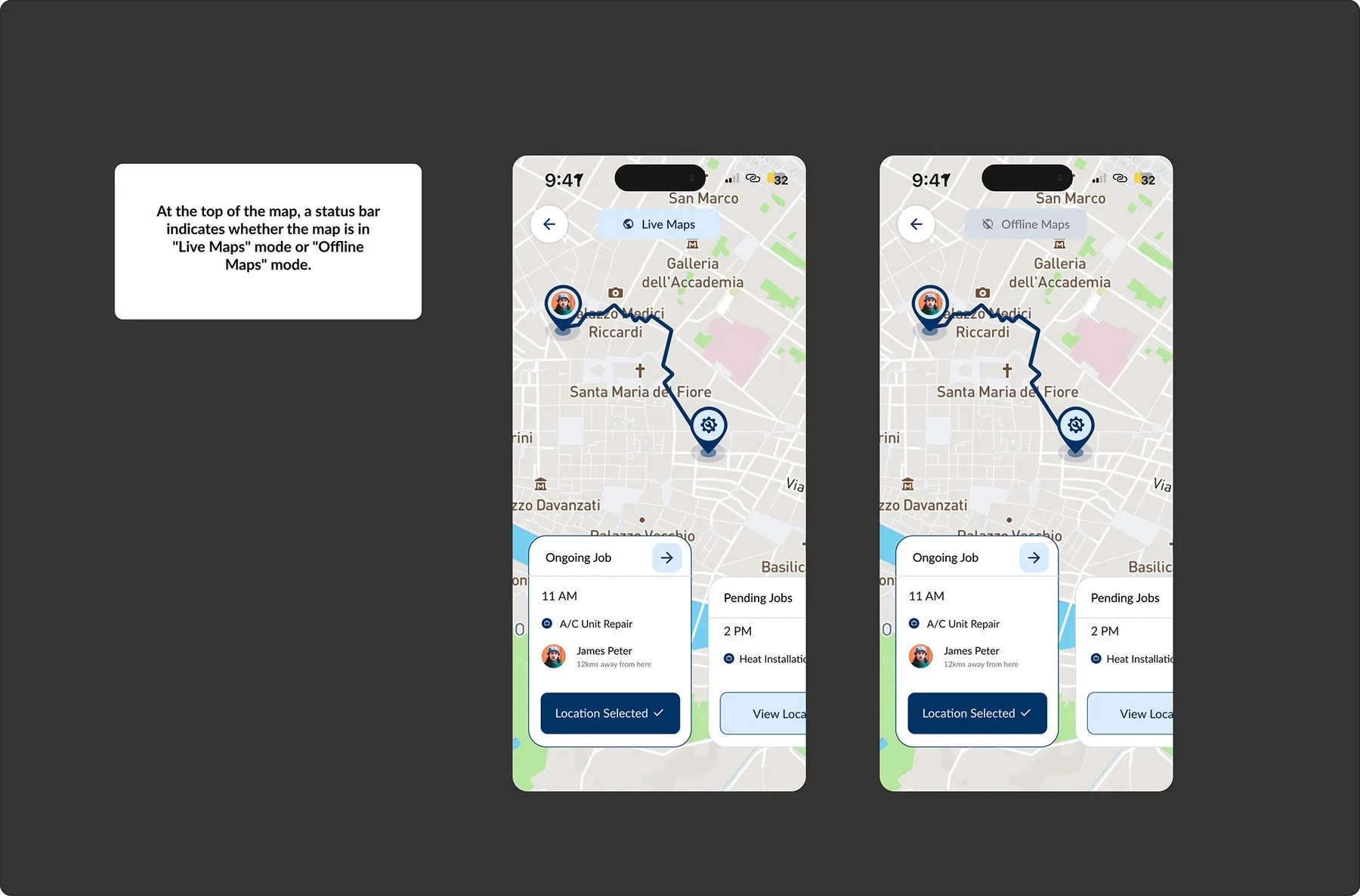
Technicians need to navigate to job sites in remote areas with poor or no connectivity. Offline maps give them navigation without an active connection.

What it includes

  • Data cachingMap data is stored on the device in advance, so map details are available without fetching them live.
  • GPS integrationBuilt-in GPS gives accurate location and route guidance whether or not the phone is online.
  • Offline accessibilityAll critical map data is available offline, so outages and weak signal do not interrupt navigation.
  • Lower data costStoring essential map data reduces repeated data use.
Annotated map screens: a status bar at the top of the map shows whether it is in Live Maps or Offline Maps mode
04

File size optimisation

Technicians attach photos and notes to jobs. Compressing images and limiting note size reduces how much data the app has to move and store.

What it gives

  • Less storageOptimised content needs less space on the device and improves overall performance.
  • Less dataWith lower data use, the app stays efficient where connectivity is poor.
  • Faster loadingSmaller content loads faster.

07The work

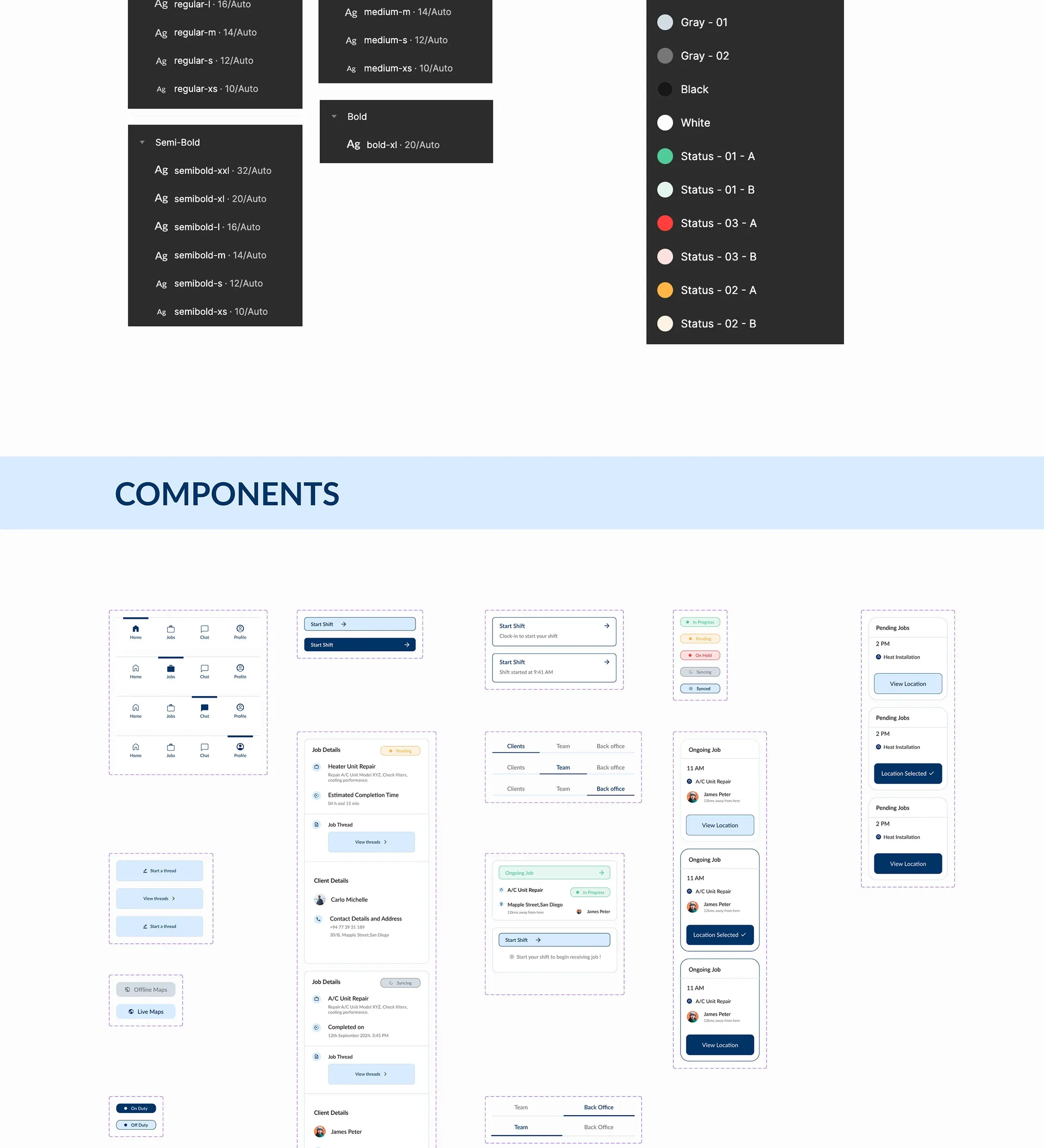
Design system and components

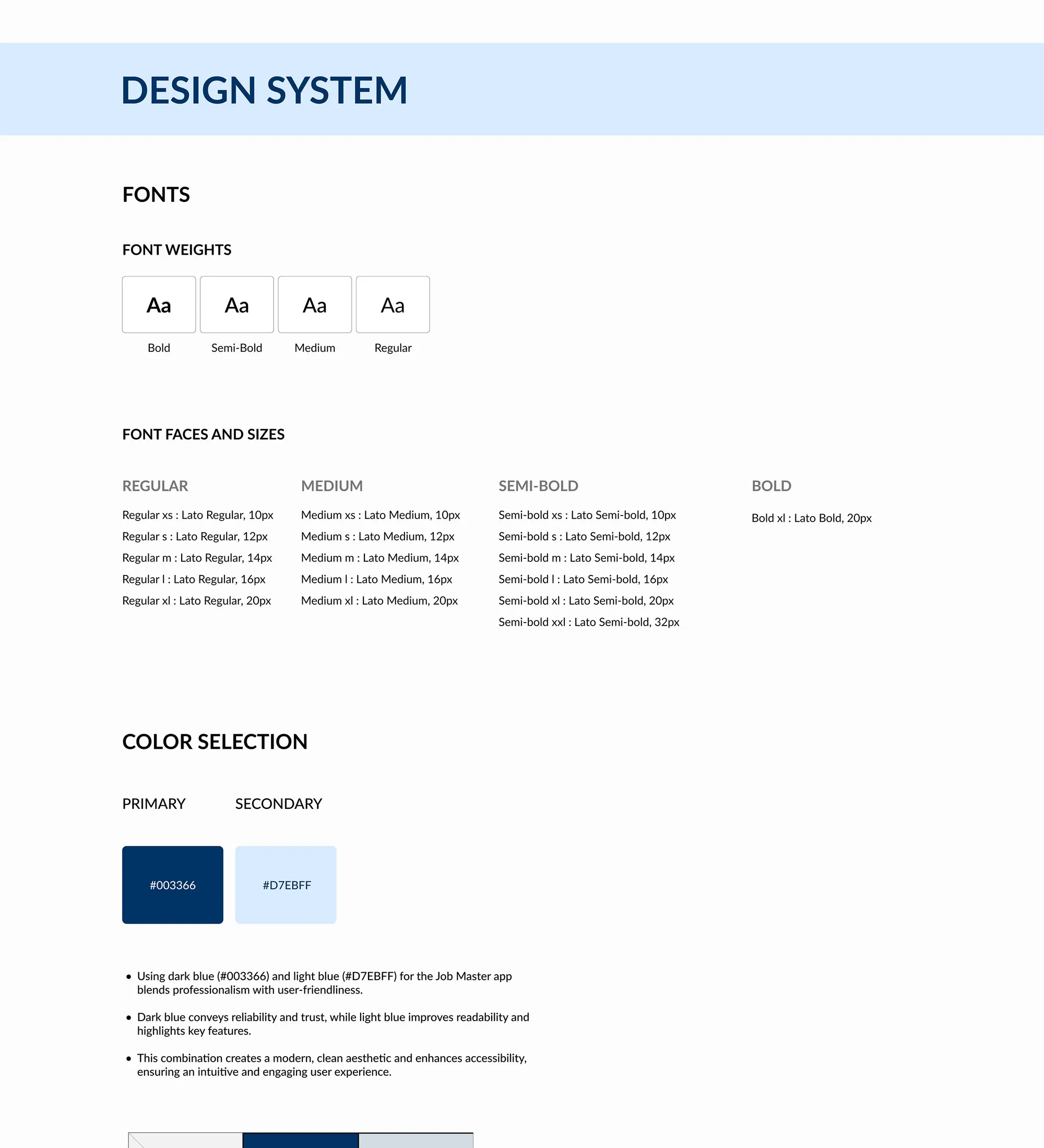
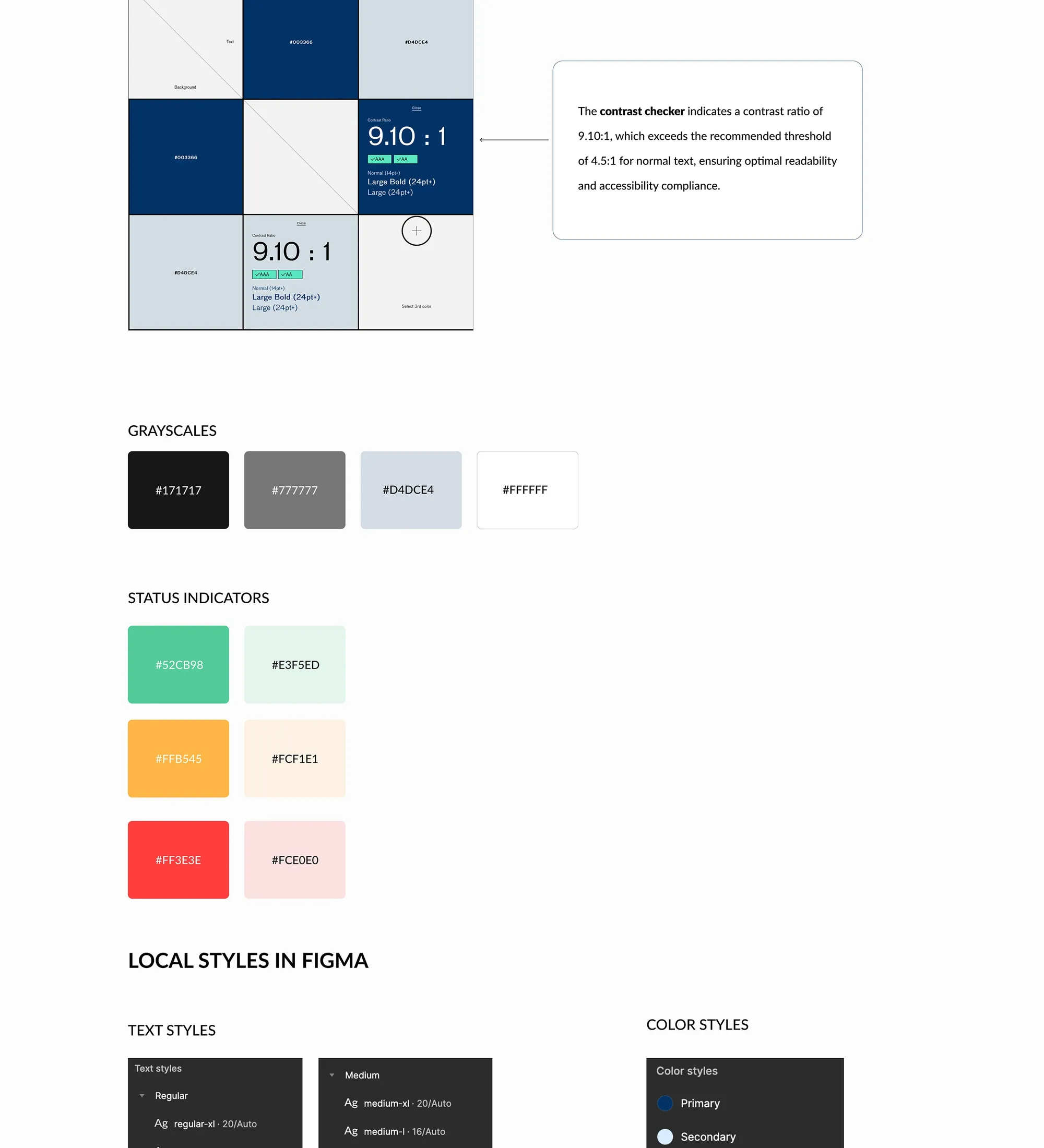
Typography, colour with contrast checks, status indicators, Figma styles and the component set.

Job Master design system and components (part 1 of 4)
Job Master design system and components (part 2 of 4)
Job Master design system and components (part 3 of 4)
Job Master design system and components (part 4 of 4)

08The work

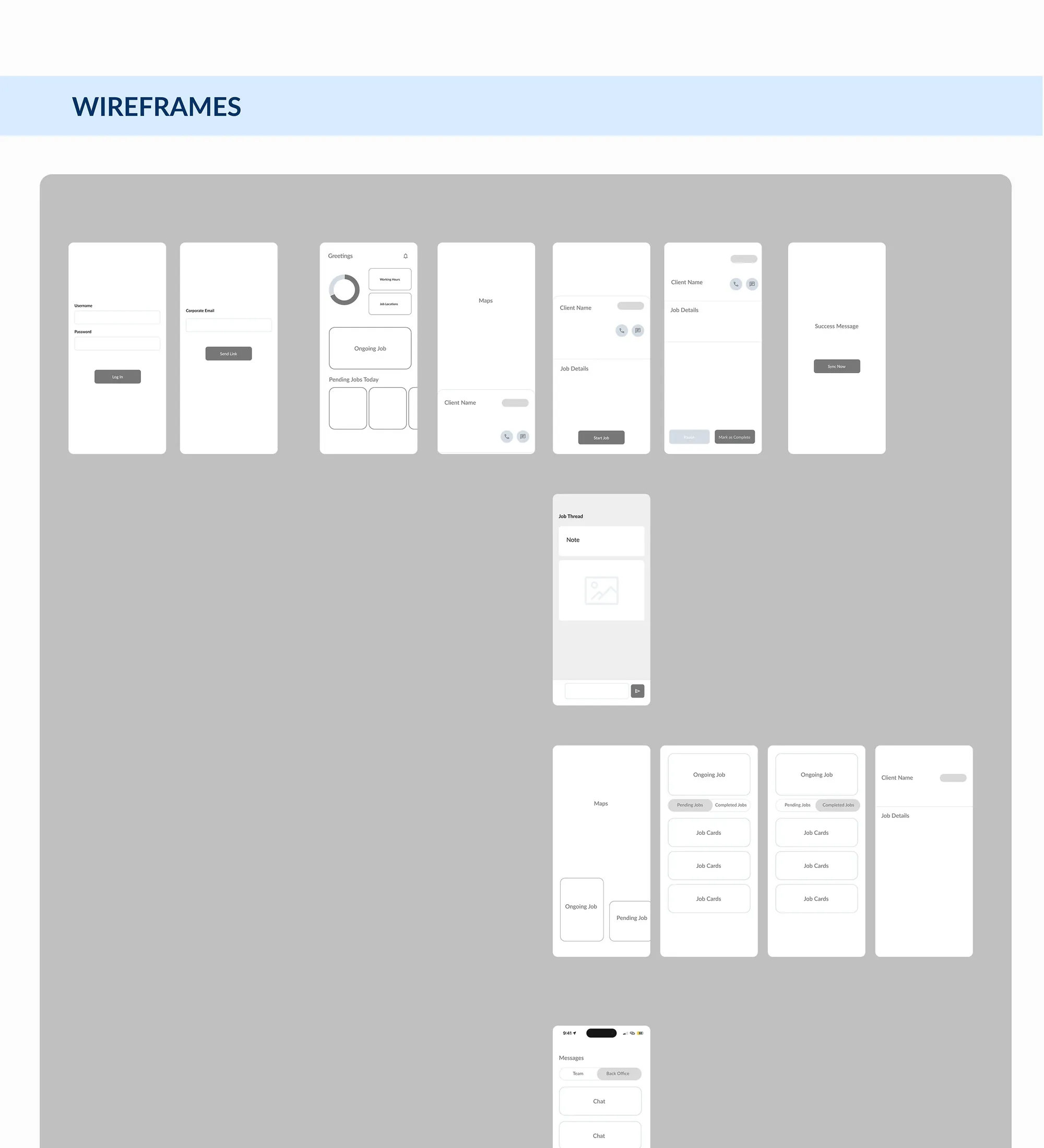
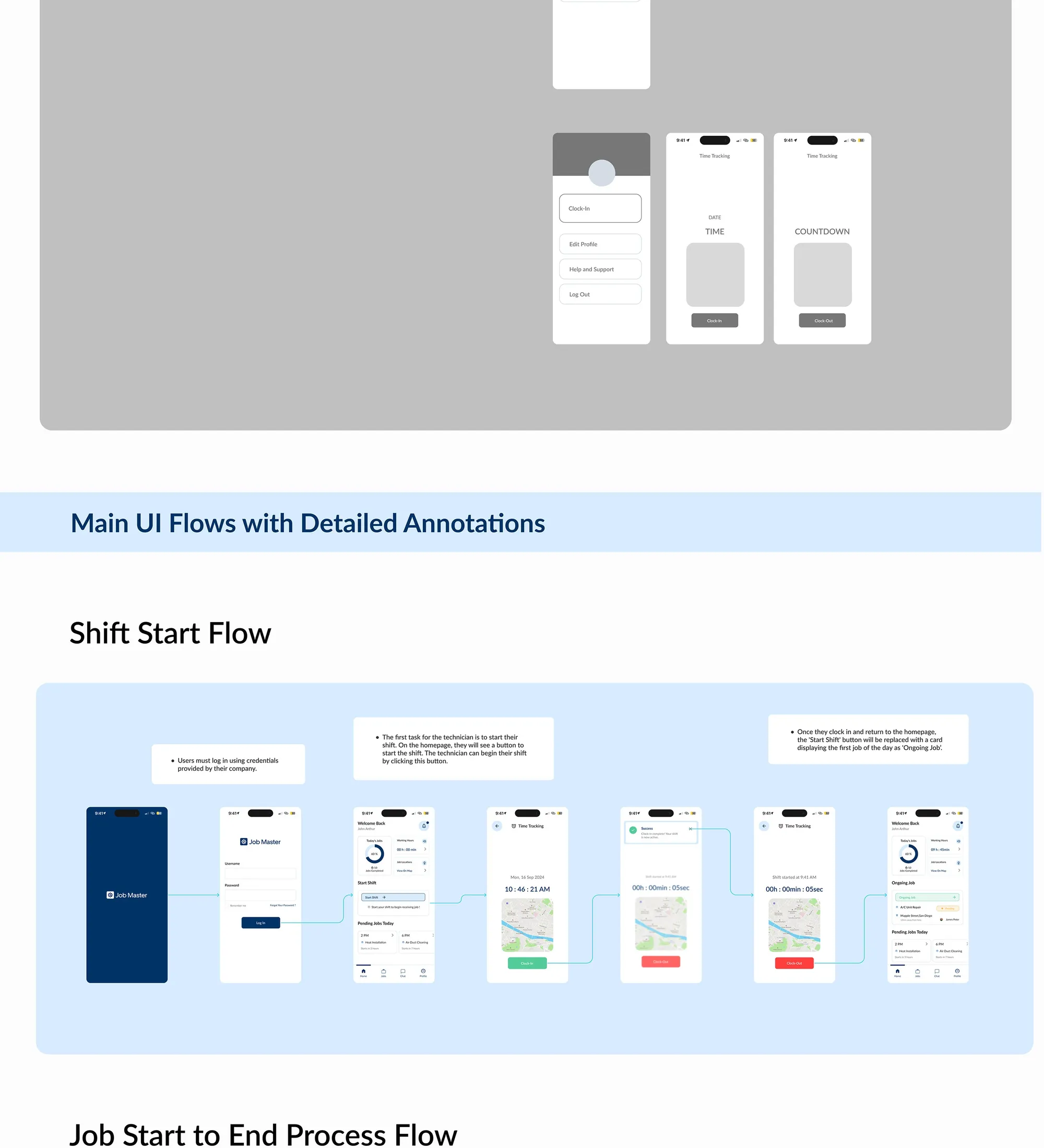
Wireframes and annotated flows

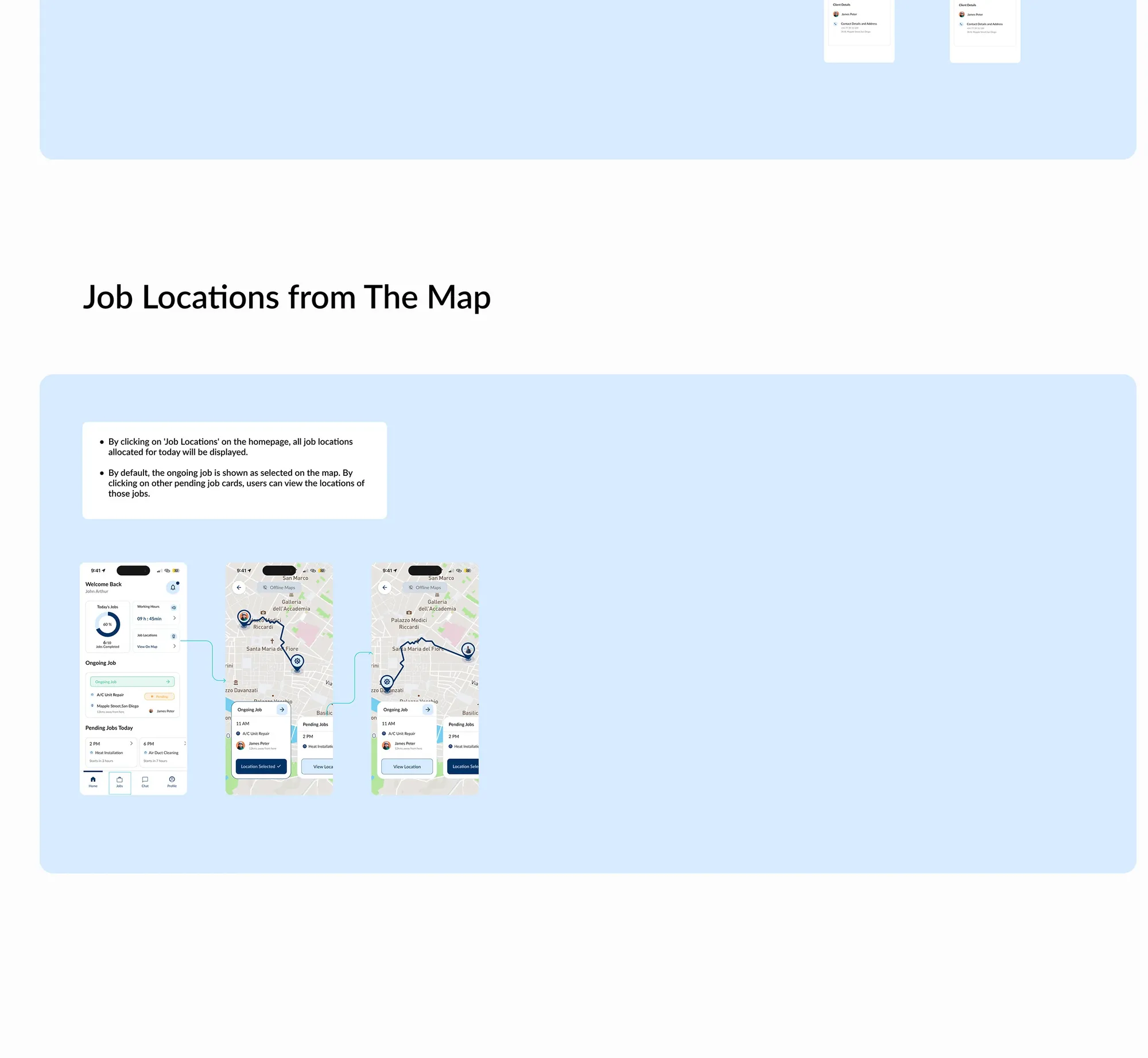
Low-fidelity wireframes, then the main flows with notes: starting a shift, a job from start to end, and job locations on the map.

Job Master wireframes and annotated user flows (part 1 of 4)
Job Master wireframes and annotated user flows (part 2 of 4)
Job Master wireframes and annotated user flows (part 3 of 4)
Job Master wireframes and annotated user flows (part 4 of 4)

09The work

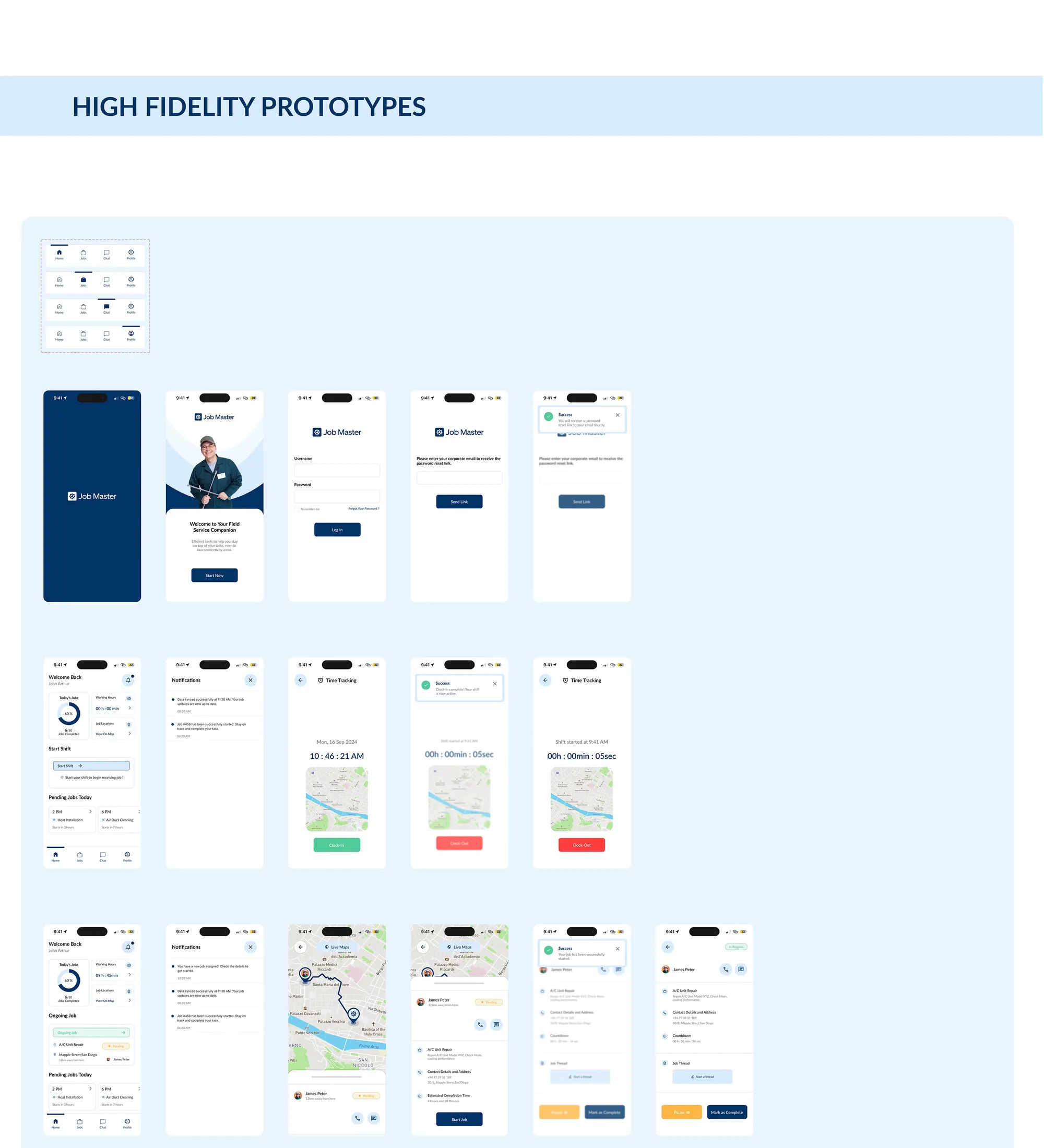
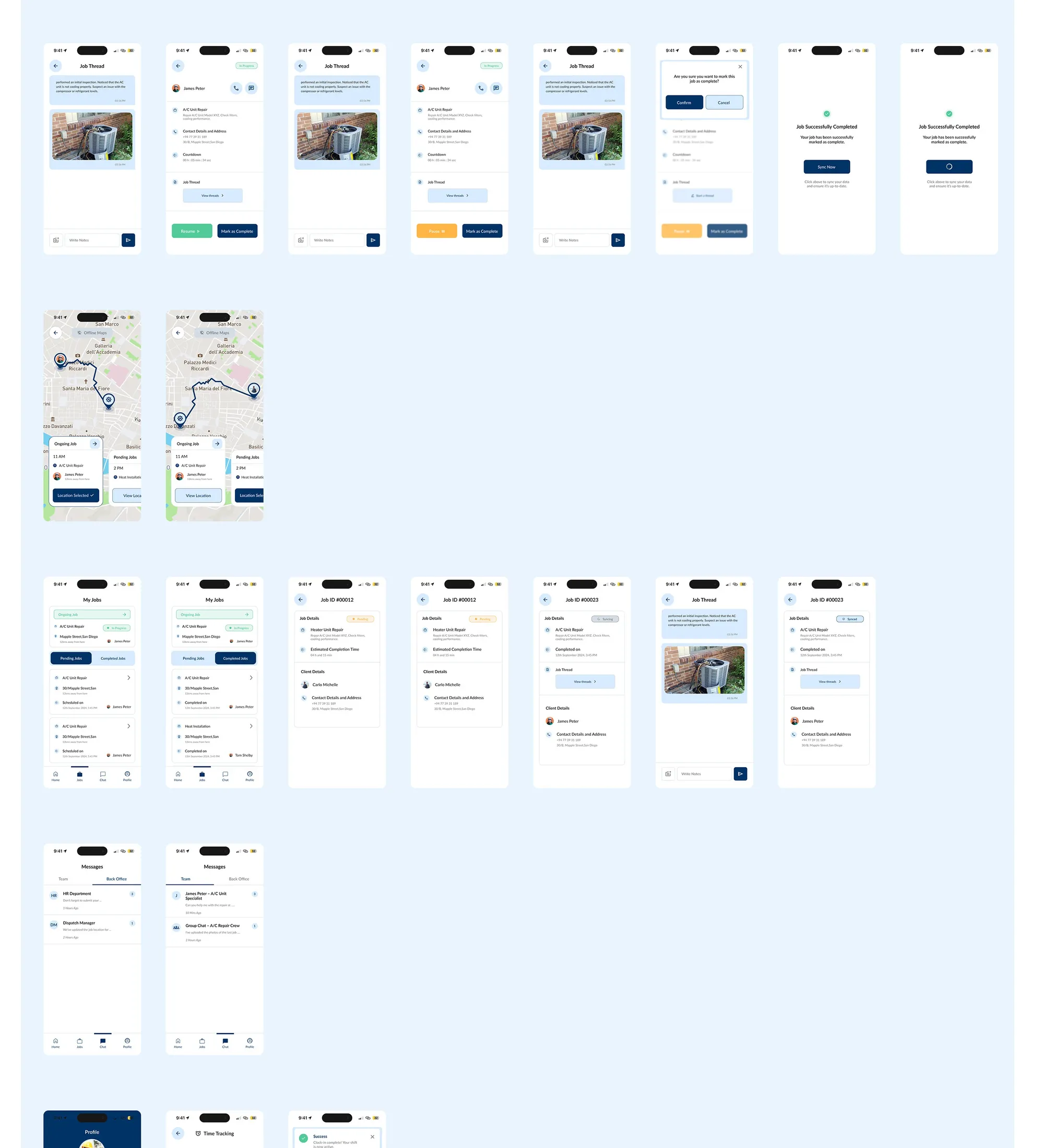
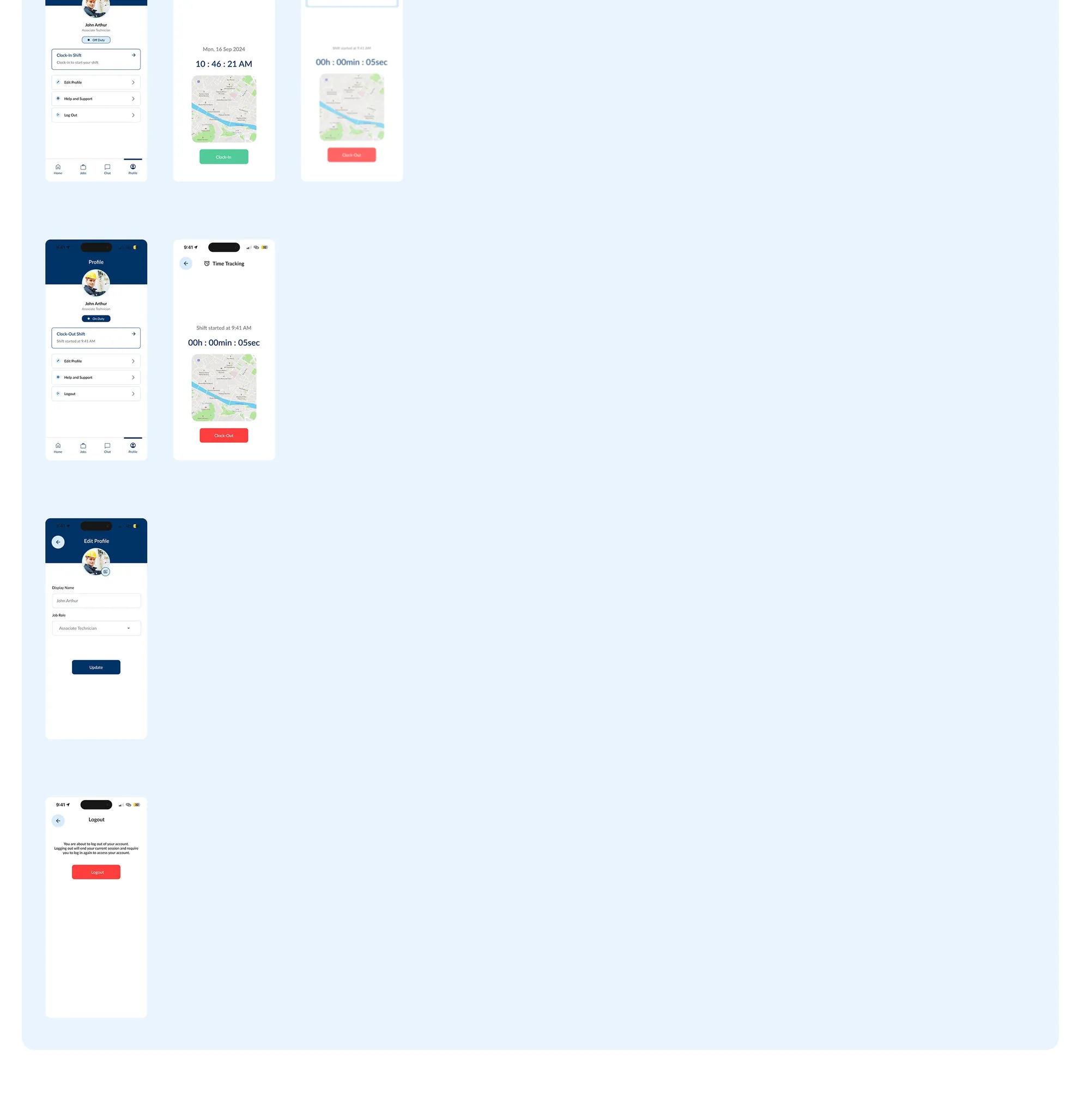
High-fidelity prototype

Job Master high-fidelity screens (part 1 of 3)
Job Master high-fidelity screens (part 2 of 3)
Job Master high-fidelity screens (part 3 of 3)